Introduction
Modeling one half of a symmetrical object and letting Blender build the other half saves a lot of time. Setting it up by hand, though, means adding a loop cut down the middle, deleting one side and adding a Mirror modifier with the right settings.
The free Auto Mirror extension does all of that with one click. In this tutorial I’ll show you how to install it, what each option does, and how to use it on a simple cube and on a character head.
Blender Version: 4.4
Prefer to watch? Here’s the video version of this tutorial:
1. Install the Auto Mirror Extension
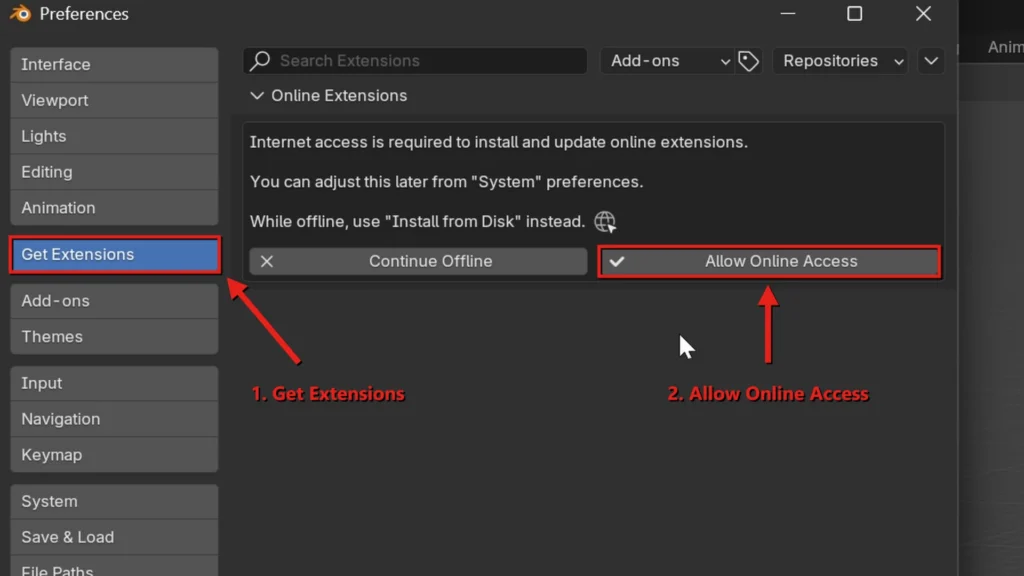
Go to Edit > Preferences and open Get Extensions. The first time you open it, Blender asks for permission to go online, so click Allow Online Access.
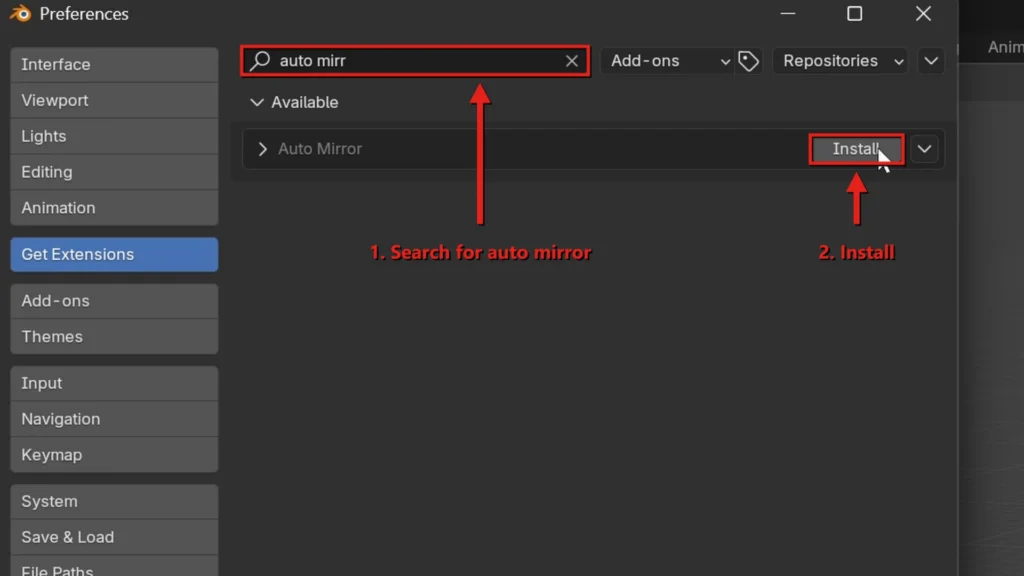
Type auto mirror in the search field and click Install next to Auto Mirror. It’s free and only takes a few seconds.
2. Open the Auto Mirror Panel
Select the object you want to mirror, then press N in the 3D Viewport to open the sidebar. Auto Mirror lives in the Edit tab.
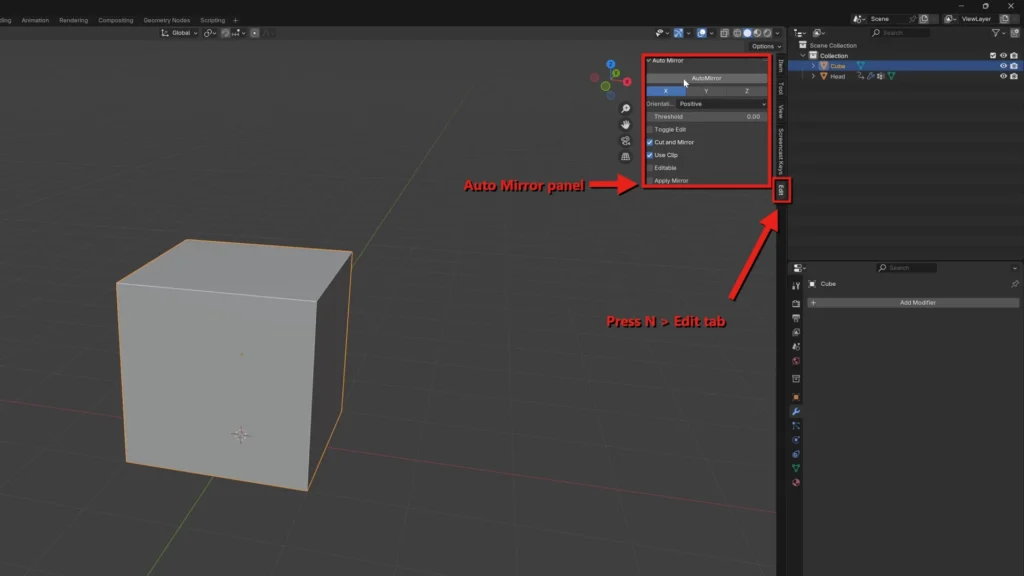
Here’s what each option does:
- X, Y, Z: the axis to mirror across.
- Orientation: which side of the axis you keep and edit, Positive or Negative.
- Threshold: vertices closer than this distance to the center are merged on the cut.
- Toggle Edit: switches between Edit Mode and Object Mode when it’s done.
- Cut and Mirror: cuts the mesh in half before mirroring it.
- Use Clip: turns on Clipping in the Mirror modifier, so vertices on the center can’t cross to the other side.
- Editable: shows the mirrored result on the edit cage in Edit Mode.
- Apply Mirror: applies the Mirror modifier right away, which is handy for making an existing mesh symmetrical.
3. Click AutoMirror
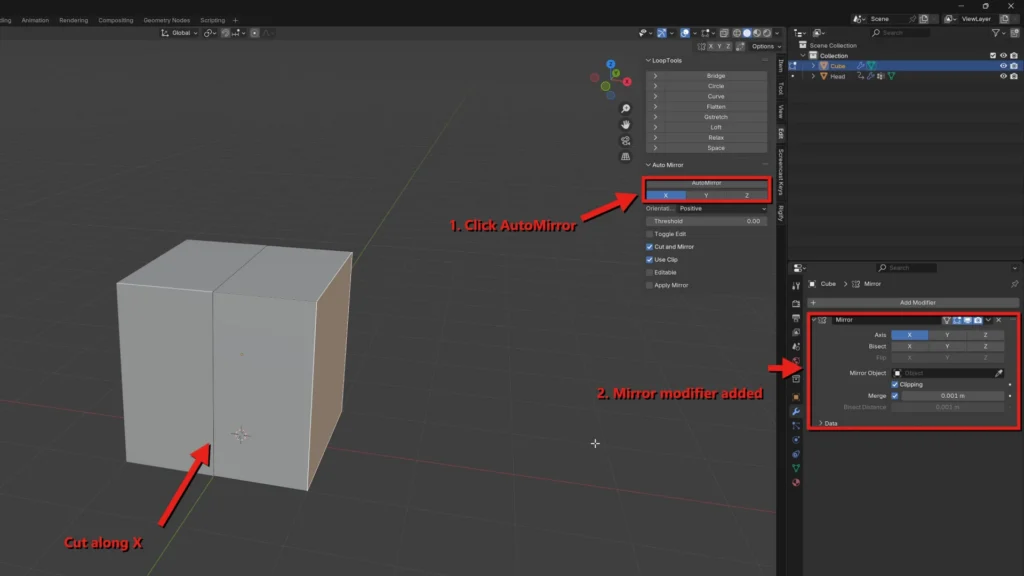
With X selected, click AutoMirror. The cube is cut in half along the X axis, one half is deleted, and a Mirror modifier appears in the Properties panel. From now on, every change you make on one side is copied to the other.
4. Mirror on More Than One Axis
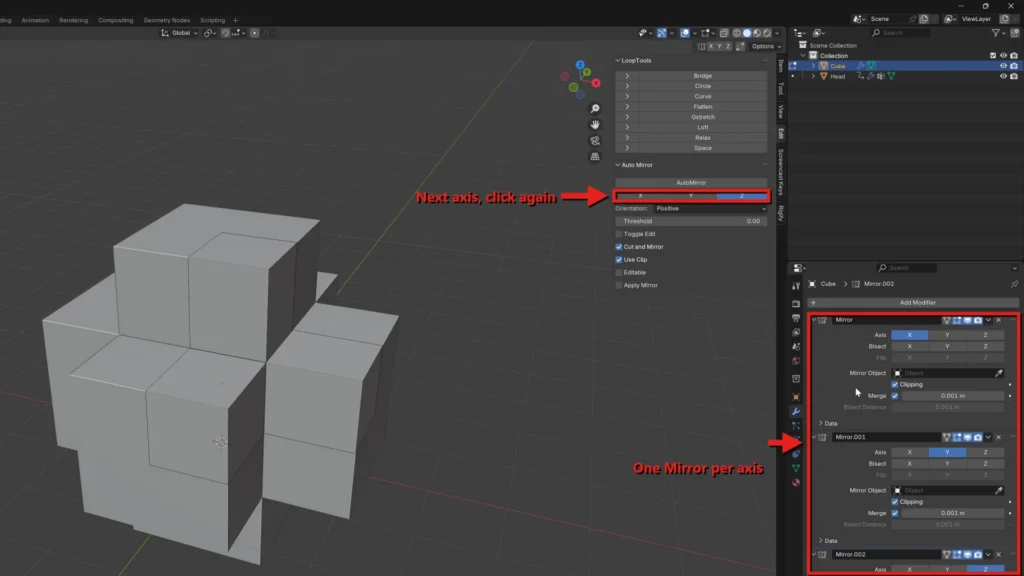
Select another axis and click AutoMirror again. Each click adds a new Mirror modifier, so after X, Y and Z you have three of them, and an extrusion on one corner shows up on every side of the cube.
5. Use It on a Real Model
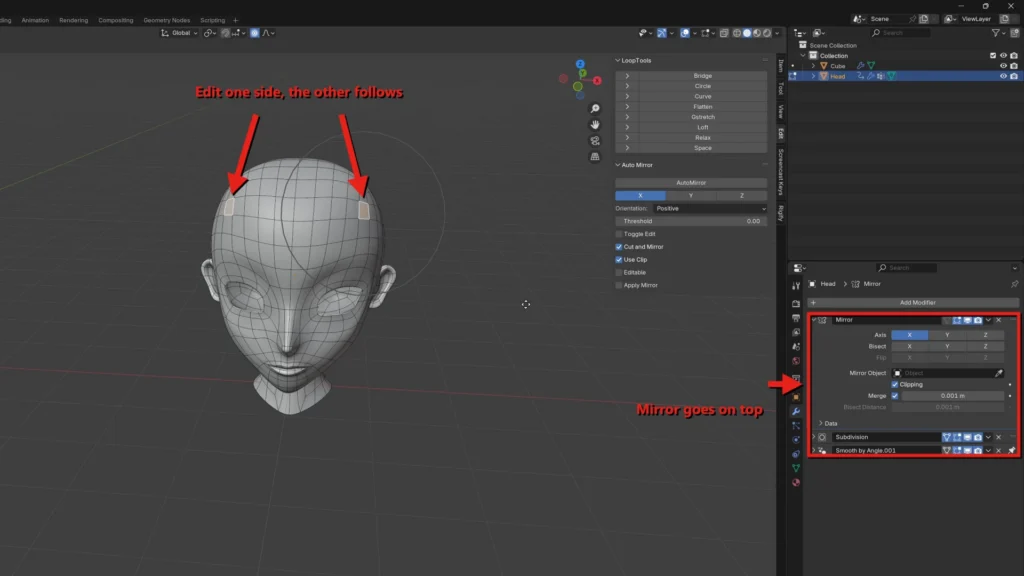
It works the same way on a finished mesh. Here I selected the head, kept X and clicked AutoMirror. The Mirror modifier sits at the top of the stack, above Subdivision, so the mirrored half is smoothed too. In Edit Mode, moving vertices on one side of the face moves the matching vertices on the other side.
Common Issues
“I can’t find Auto Mirror in Get Extensions”
Make sure you allowed online access, then search for auto mirror. In Blender 4.1 and older it was a built-in add-on, so enable it in Preferences > Add-ons instead.
“The wrong half was deleted”
Undo with Ctrl + Z, switch Orientation between Positive and Negative, and click AutoMirror again.
“My object isn’t mirrored around its center”
Auto Mirror cuts at the object’s origin. If the origin isn’t in the middle of the model, move it there first, for example with Object > Set Origin > Origin to Geometry.
“I want a single mesh again”
When you’re done modeling, apply the Mirror modifier: hover over it in the Properties panel and press Ctrl + A, or use the dropdown arrow in its header and choose Apply.
💬 Final Thoughts
Auto Mirror doesn’t do anything you couldn’t do by hand, but it turns four steps into one click, and that adds up quickly when you model symmetrical props, vehicles or characters.
Need a model to practice on? Browse our free 3D models.