Introduction
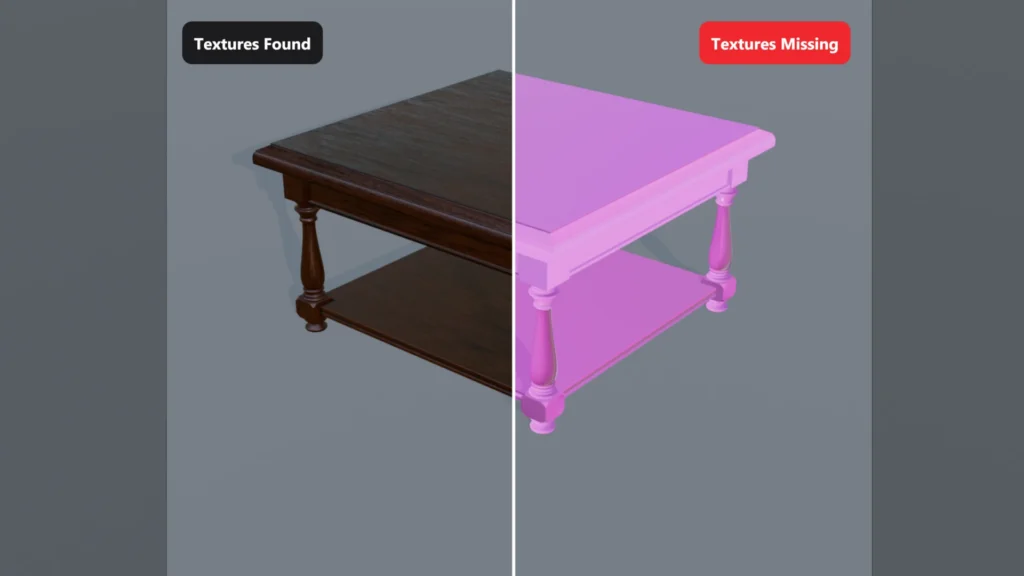
You open a .blend file and your model is bright pink. Nothing is wrong with the model or the material. Pink (magenta) is how Blender tells you it can’t find an image texture that the material uses.
This usually happens when you:
- move or rename the folder with your textures
- move the .blend file to another folder without its textures
- open the project on another computer, where full paths like D:\Projects\… don’t exist
- download an asset and extract only the .blend file from the zip
In this tutorial I’ll show you how to see which textures are missing, fix all of them at once with Find Missing Files, relink a single texture by hand, and stop it from happening again.
1. Find Out Which Textures Are Missing
Go to File > External Data > Report Missing Files.
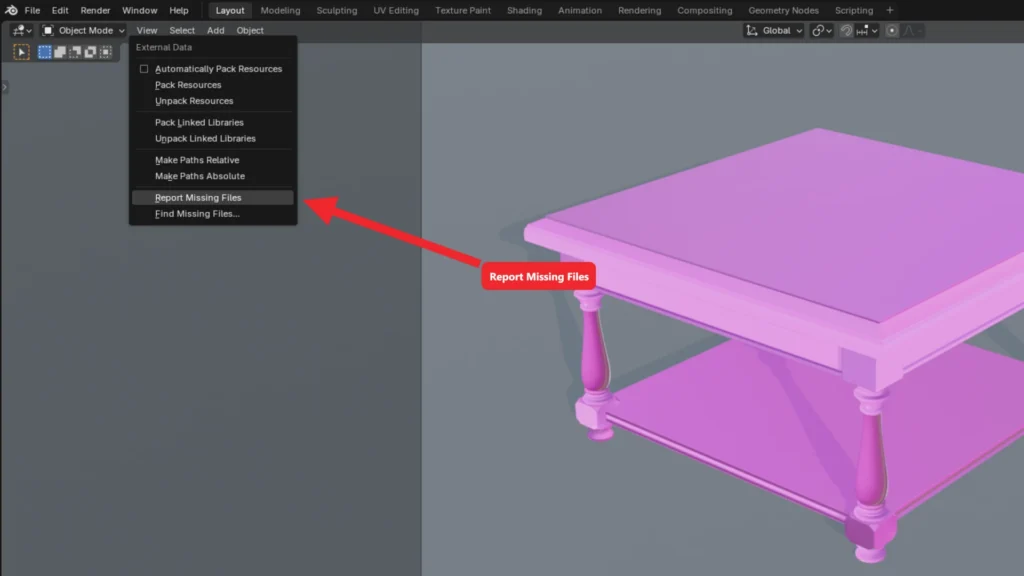
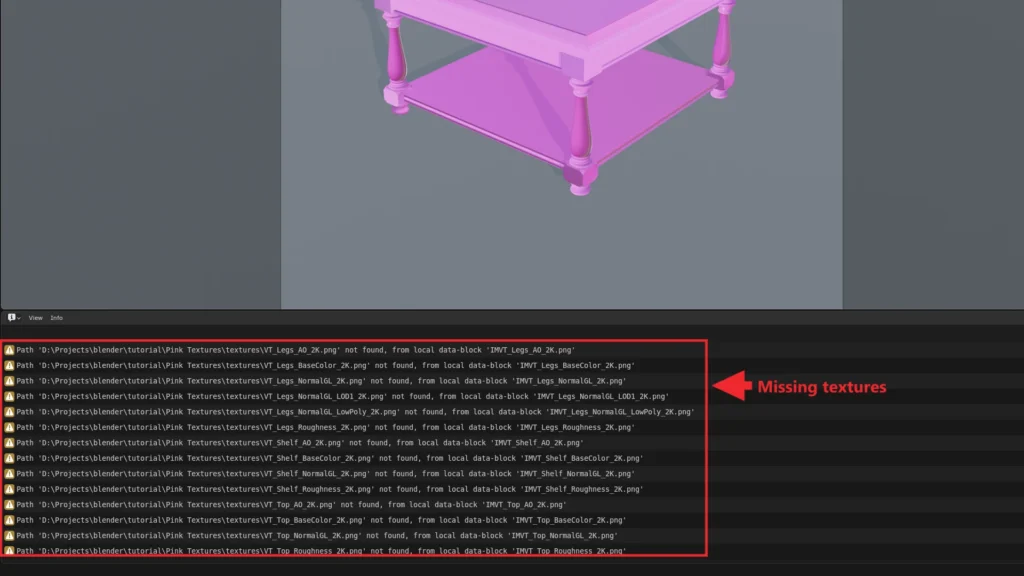
Blender lists every missing file in the Info editor, and the last one also shows up in the status bar at the bottom of the window. In my example, all 14 textures point to a textures folder that doesn’t exist anymore, because I renamed it to Victorian Table Textures.
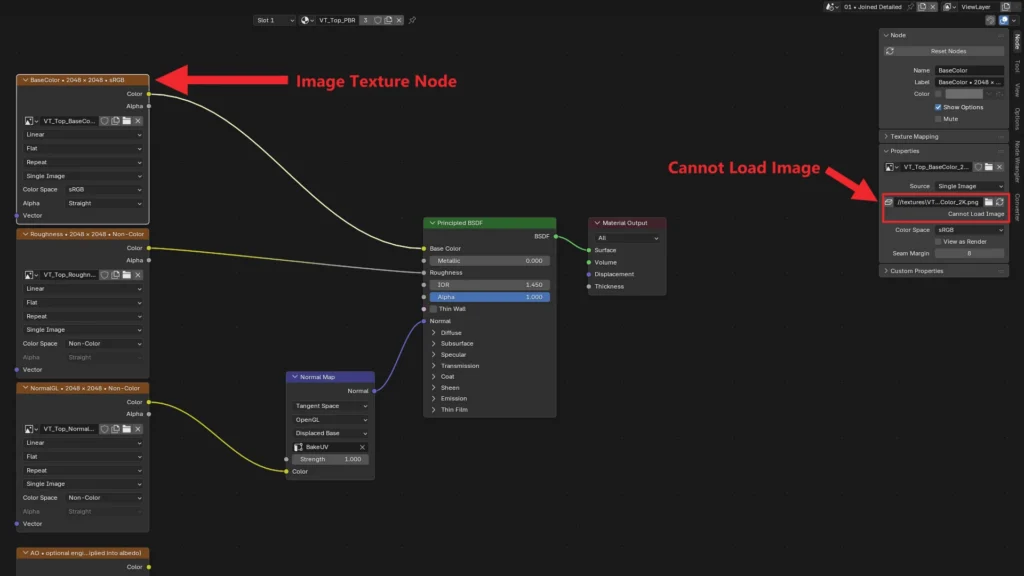
You can also check a single texture. In the Shader Editor, select the Image Texture node, press N and open the Node tab. Under Properties, a missing file shows Cannot Load Image right below its file path.
2. Fix All Textures with Find Missing Files
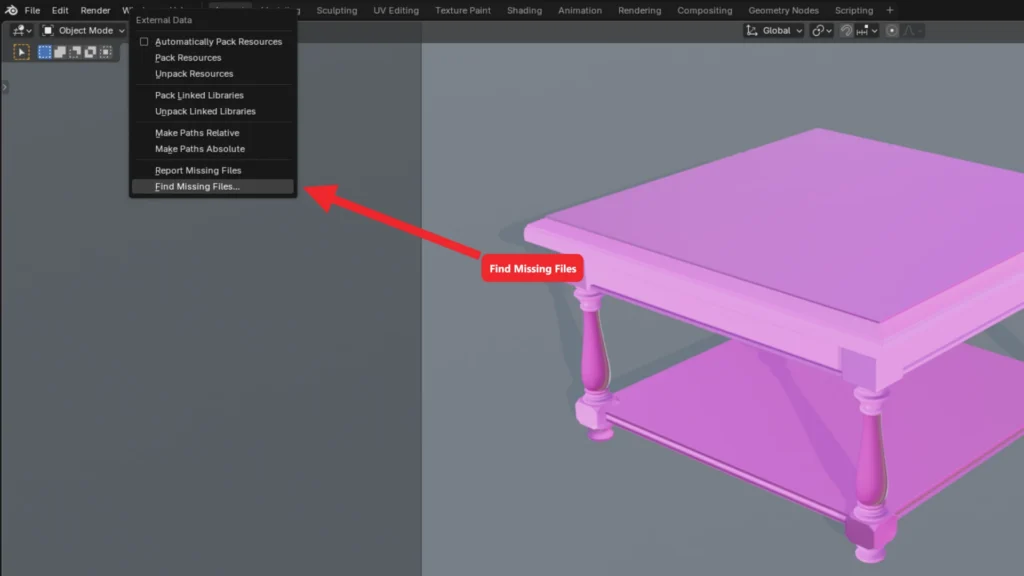
Go to File > External Data > Find Missing Files…
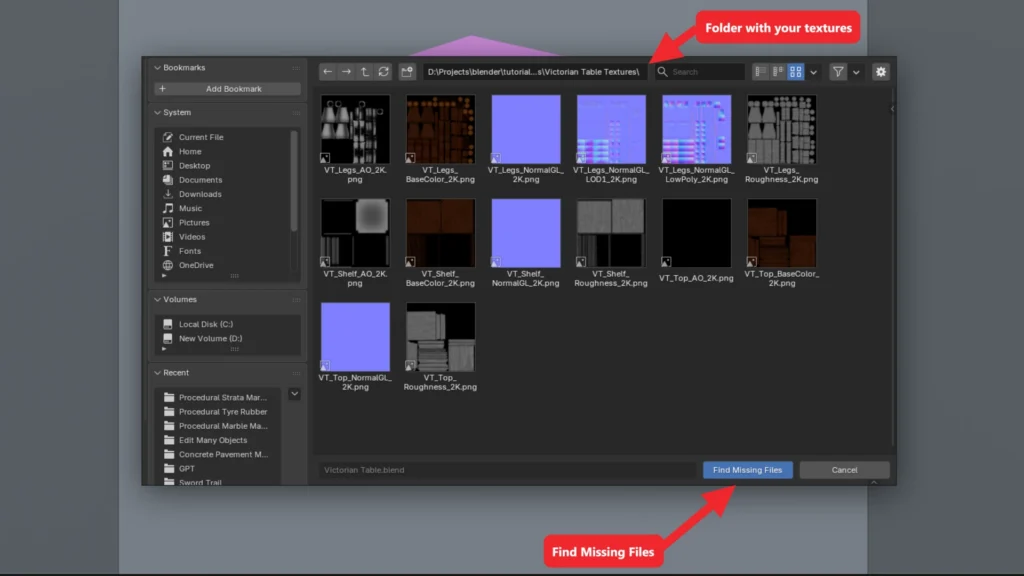
In the file browser, go to the folder where your textures are now and click Find Missing Files. Blender matches the textures by file name and also searches the subfolders, so you can pick a parent folder if you’re not sure exactly where they are.
That’s it. Blender relinks every texture it finds and the model looks right again. If you select an Image Texture node, its path now points to the new folder. In my case the paths stayed relative (//Victorian Table Textures\…).
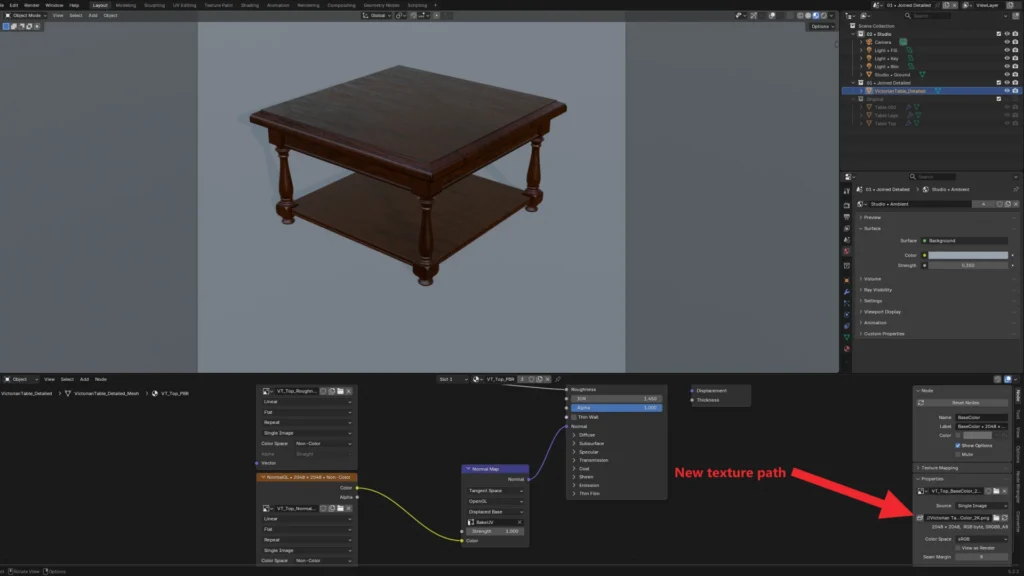
Save the file (Ctrl+S) so Blender keeps the new paths.
3. Relink a Single Texture Manually
Find Missing Files only works when the file name hasn’t changed. If a texture was renamed, or you want to use a different image, relink it by hand: select its Image Texture node, press N, open the Node tab and click the folder icon next to the file path under Properties. Then pick the texture file in the file browser.
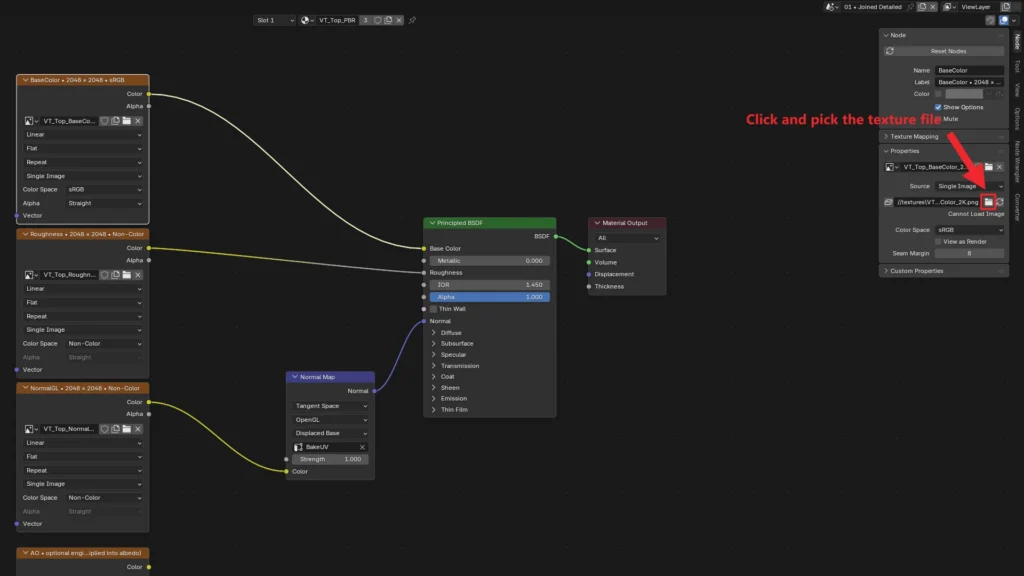
This changes the image itself, so every material that uses that image is fixed too.
4. Prevent Pink Textures Next Time
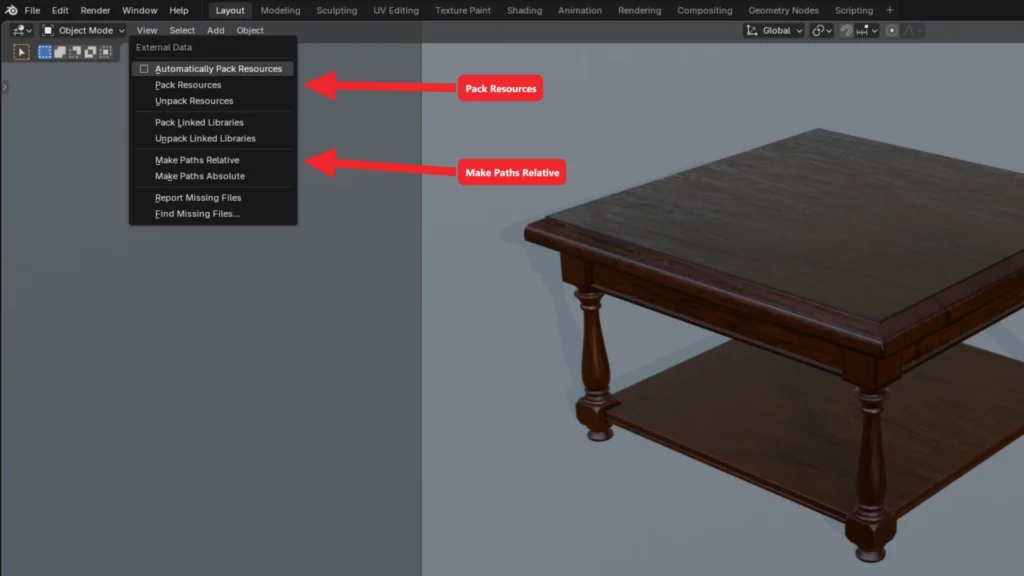
Both options are in File > External Data:
- Pack Resources saves a copy of every texture inside the .blend file, so you can move it, share it or open it on another computer without breaking anything. The downside is a bigger file. Turn on Automatically Pack Resources if you want Blender to pack external files for you every time you save.
- Make Paths Relative stores texture paths relative to the .blend file instead of full paths like D:\Projects\… As long as the textures folder stays next to the .blend and you move the whole project folder together, the links keep working.
Common Issues
“Find Missing Files didn’t fix everything”
Blender looks for files with the same name. If a texture was renamed or deleted, relink it manually (step 3) or get the file again.
“Only part of my model is pink”
Only materials with missing textures turn pink. Select that part, open its material in the Shader Editor and look for the Image Texture node that says Cannot Load Image.
“My model looks fine in Solid view”
Solid view doesn’t show image textures by default, so it hides the problem. Switch to Material Preview or Rendered to see it.
“I downloaded an asset and it’s pink”
Extract the whole zip, not just the .blend file, and keep the textures folder next to the .blend. If it’s still pink, run Find Missing Files and point it to the folder you extracted.
💬 Final Thoughts
Pink textures look scary, but they always mean the same thing: Blender can’t find an image file. Report Missing Files tells you which ones, Find Missing Files relinks them in one go, and packing or relative paths keep it from happening again.
If you want to practice, download the free Victorian Table, unpack its textures (File > External Data > Unpack Resources), rename the textures folder and try to fix it yourself.